

Introduction
It is important to know that MS Expression Web is not industry standard web editing software. You could not use it to edit complex coporate web sites. However for much simpler not for profit organisationsm small business and personal web sites it is STILL excellent web editing software.
Microsoft 'retired' it is about 2012 and it is now FREE to use. Itdoes use an earlier verion of HTML, while modern web browsers now use the version 5 standard. However this does not present a signficant problem when editing simple web pages and site, and you can easily work around this limitation. And Expression Web has features, that make editing an entire web site really quick and easy, that are just not available in paid & licensed web editing software.
You can download it from here.
Dynamic Web Template System
The is one of the unique features of MS Expression Web that makes editing an entire web so easy. The other feature is the 'site wizard' that creates an entire functioning web site, based on the template you select, with a few clicks of your mouse. In the process of creating your new web site MS Expression Web create a template file named 'master.dwt'. Now all the other web pages in your web site are 'built' from that template file. It is a similar idea to MS Word's document templates (.dot files).
The file master.dwt sets out the editable and non-editable parts of your web pages. So, by editing this one special file, you can change the colour scheme and layout of ALL the other web pages. MS Expression Web will ask you if you want to update them all whenever you make changes to master.dwt.
MS Expression Web uses HTML comments <!-- ... -> to mark out different regions of your
web pages. And web browsers ignore HTML comments. So this is what master.dwt looks like when open
in Expression Web.
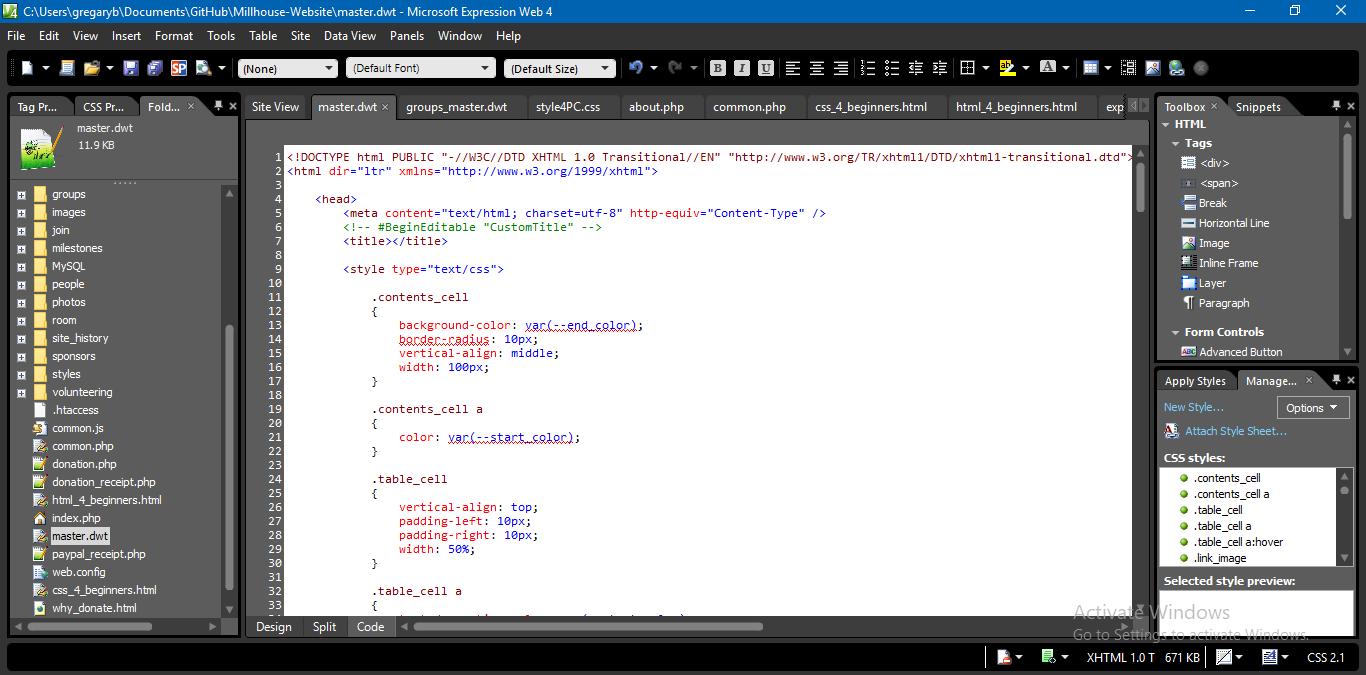
You can see that it
is fully editable like a regular text file. Note this HTML comment:
<!-- #BeginEditable "CustomTitle" -->. This is how Expression
Web marks a region of a web page that is freely editable and not specified on the template.
This is what a web page, that is built from master.dwt, looks like when opened in Expression Web.
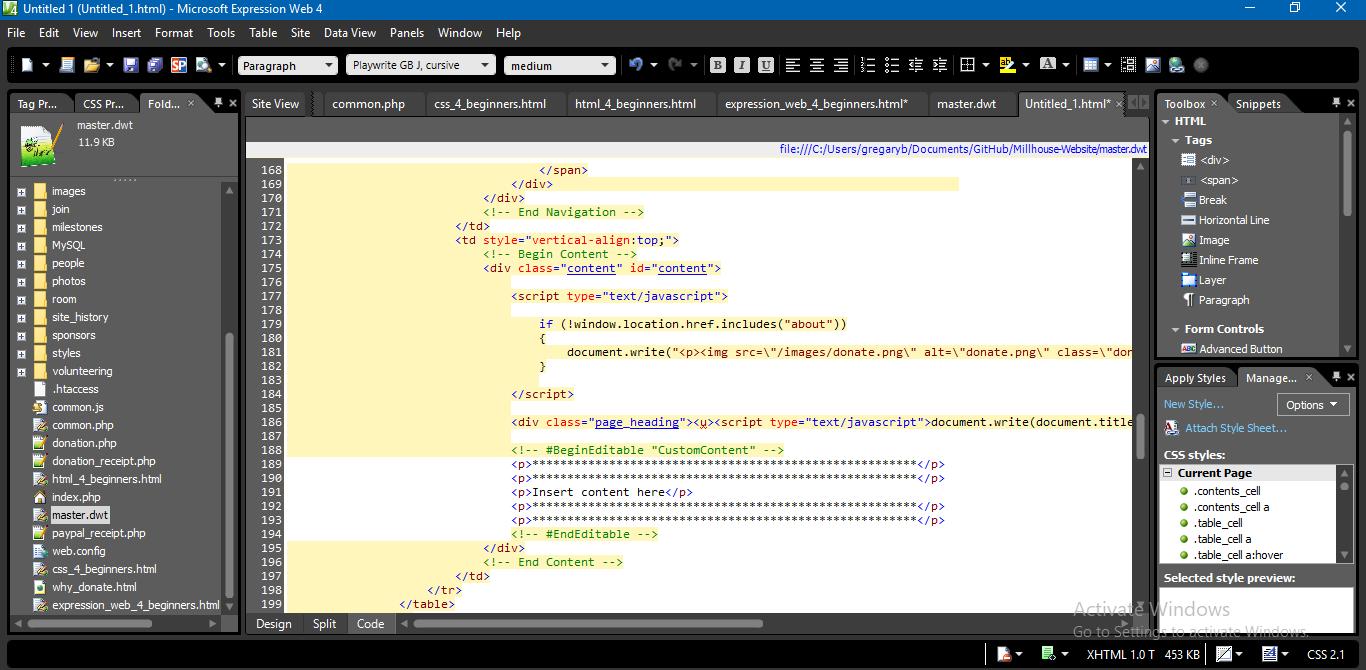
Now notice that most of the text in this newly created web page has a yellowish background color. That
means 'don't change this text'. All the HTML code with the yellowish background is controlled by
master.dwt. If you edit any if this text and try to save the document then Expression Web will try and
convince to replace your changes with what is specified in master.dwt for that region of the file.
Also notice the the bit around "Insert content here" with the white text background. That is the part of the web page that master.dwt marks as editable and should contain content that is specific for this web page. You can type freely in this part of the web page, save your changes and Expression Web will not complain.
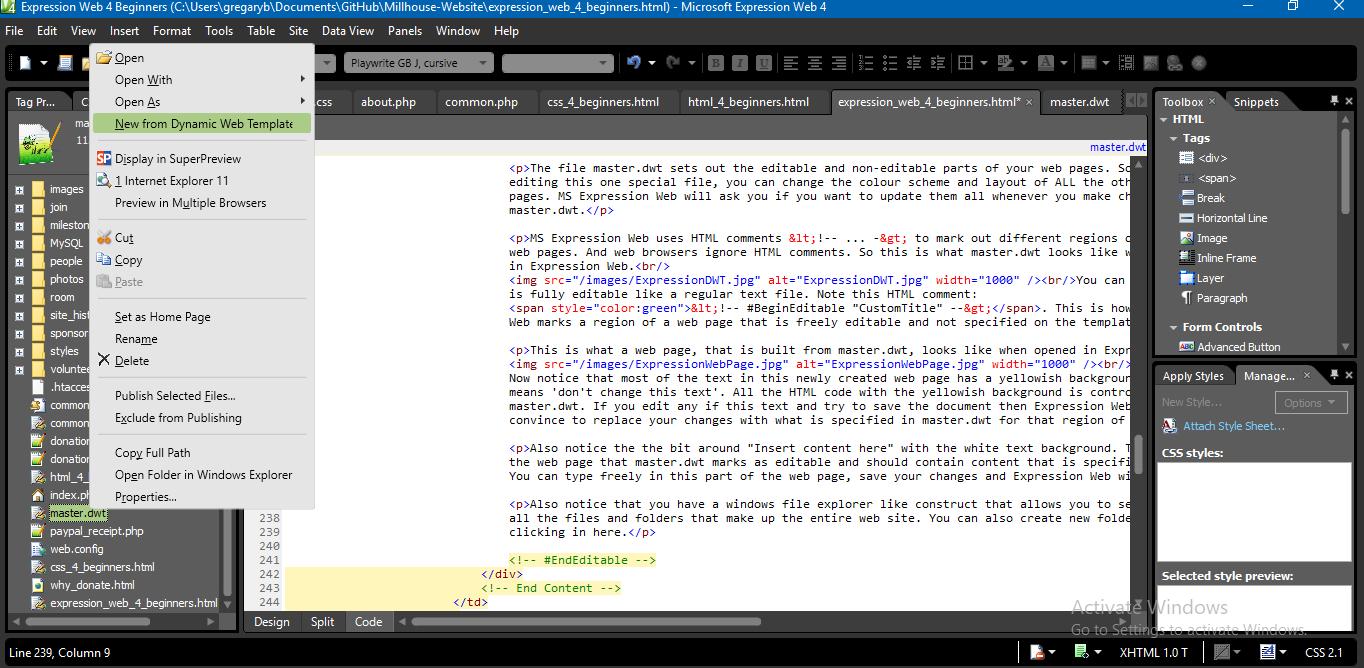
Also notice that you have a windows file explorer like construct that allows you to see and browser through
all the files and folders that make up the entire web site. You can also create new folders and files by right
clicking in here. For example, if you want to create a new web page based on master.dwt, then right click
on that file and select 'New from Dynamic Web Template'.
Editing HTML Tags
As you edit your HTML tags Expression Web will display context sensitive popup menus that list all the option avilable to you. But remember that Expression Web uses an earlier verion of HTML than what modern web browsers use. So these popup will not show you any options that are part of HTML version 5 only. So just keep that at the back of your mind.
List of tag names
As soon as you type '<' You will see this popup menu:
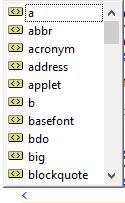
You can scroll through this list and press ENTER when you find the tag you are looking for
and Expression Web will type the tag name for you.
The type a space and you will see this popup menu:
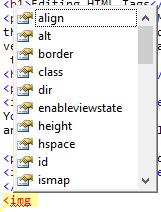
So expression web gives you a list of all the properties that are valid for that tag. Scroll
through the list, find the property you are looking for and press ENTER. Again Expression Web does
all the typing for you. Type another space and you will get the same list of valid properties
for that tag. This will continue until you close the tag with >
This is a rather convenient way for you to get to know the tag names and the different properties that you can apply to them.
Editing CSS
If you add a 'style' property to one of your HTML elements then Expression Web will show you
this popup menu. E.G. <img style="|", with the cursor sitting between the double quotes.
This also works when typing between the <style>...</style> tags.< br/>
This is a list of all the CSS attributes that you can apply to your HTML tag. If you select one then
press ENTER then Expression Web does the typing for you. THEN if you type a colon (:) then Expression
Web will show you yet another popup menu.
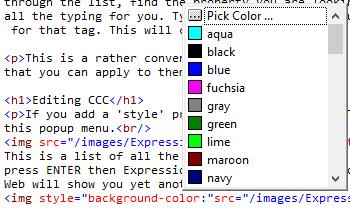
This time containing all the valid values that you can use with this CSS property. Select a property value
by pressing ENTER and Expression Web does the typing for you. If you then type a semi-colon
Expression Web will show you the list of CSS properties again.
Again this a is a really convenient way to get to know many of the CSS attributes you can play around with, and the valid values that can be applied to them.
Syntax error highlighting
Another really useful feature of Expression Web is that it highlights syntax errors in
both your HTML tags and your CSS. For example:

If you look carefully at the <h1> tag below the Latin filler text you shuld notice
that it has a red underline. If you hover your mouse over that re underlined tag you will
see what the problem is:

'<p> tag cannot contain a <h1> tag' means that I have opened a <p> tag before
the Latin filler text, but I have failed to close the tag - the </p> is missing. If I add
that missing tag then the red underlining of the <h1> tag will disappear. The error message
is telling you the same thing that I have explained here.
Now in this example I have partially closed the <p> tag but I have neglected to add the
closing angle bracket to my </p tag. Now notice the yellow text backround highlighting in two
places.

Again, if you hover your mouse over the highlighted text you will get an error message:

You also get yellow text background highlighting if you accidently duplicate tags, as in this example:

This feature makes it particularly easy to spot common errors in your HTML code.
Code, Split & Design Tabs
These are located at the bottom left of the editing window. The 'design' tab shows you a
rough rendering of your web page as it would appear in a web browser. But it is imperfect
and there may be inconsistencies between how you page appears here and how it appears in your
web browser.
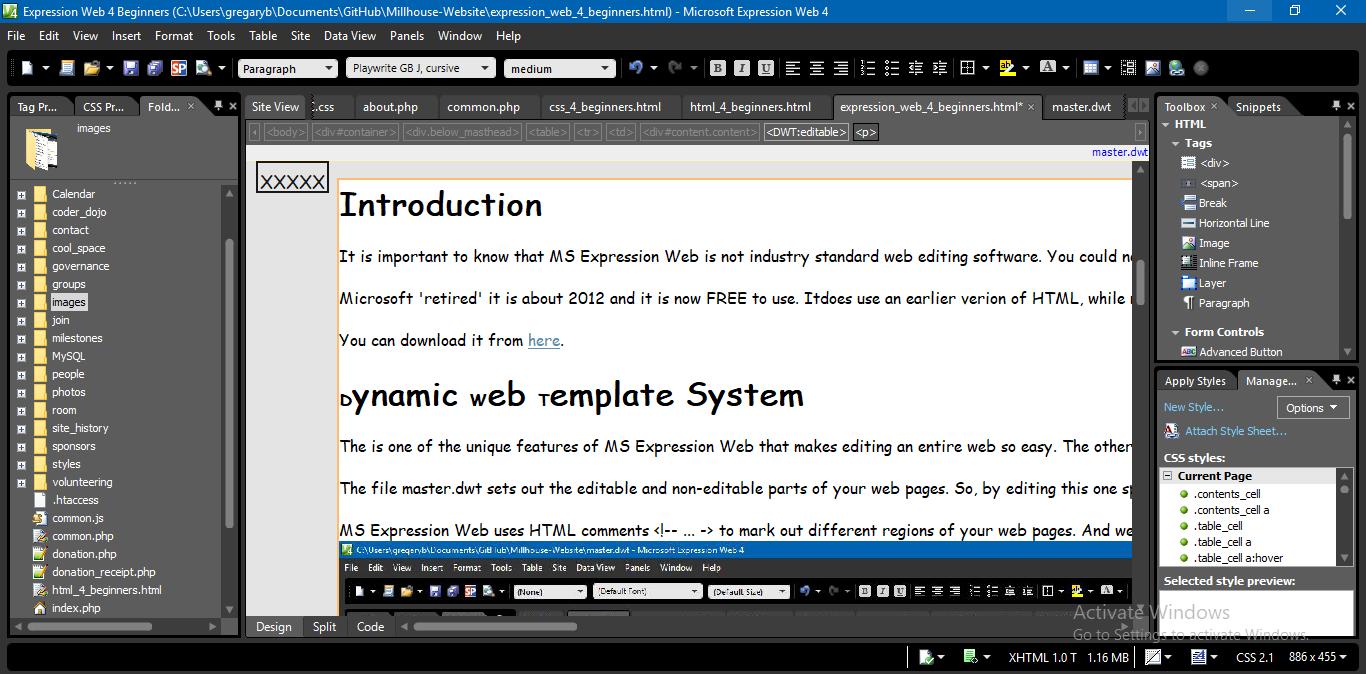
But that is not all you can do in this tab. You can actually edit the content in much the same way as you edit a Word document. You can add new paragraphs, hyperlinks, page bookmarks and images. Just explore the 'Insert' popup menu. And you can also change text characteristics (bold, italic and underlined), create bulleted and numbered lists and change text alignment (left, center and right). Just explore the toolbar at the top of the editing window.
And then switch to the code tab to see what tags and properties have been added. Again a convenient way to get to know the tags and properties. The slit view shows you both the HTML code and the rendering at the same time.
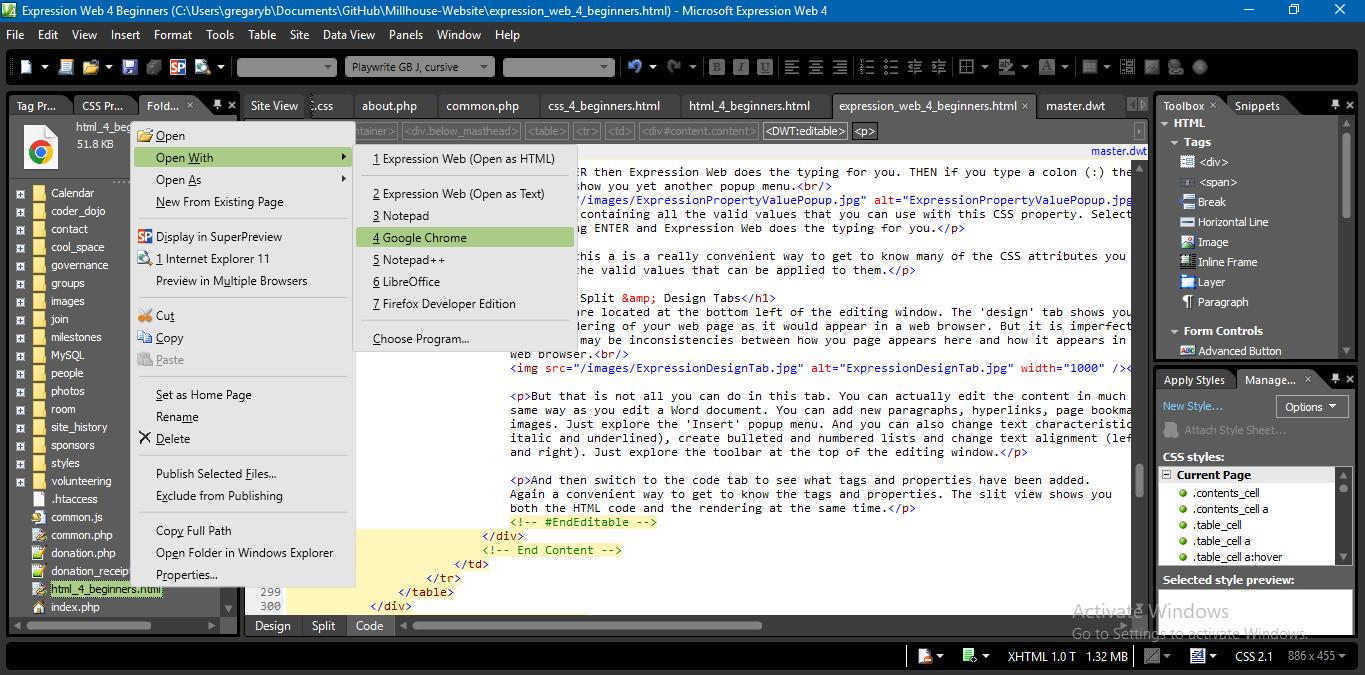
If you want to view your web page in a web browser then locate it in the file explorer on the
left hand side, right click, select 'Open with' and then click on your web browser in the list.
Your web page will then open in the web browser.
Renaming files and folders
Another incredibly useful feature of Expression Web is, if you rename your HTML documents, your image file names or even your folders then Expression Web will search through ALL the HTML files, linked to master.dwt, find all the hyperlinks to them or involving them and change the values of their href properties accordingly. But you have to do this within Expression Web and not in Windows file explorer.
Conclusion
MS Expression Web may, deprecated software since 2012 however, with all these VERY helpful features, I have not found its match among even paid & and licensed web editing software over the last 10 years or so. And it is toally FREE to use now.